 skills for everything
mission-control
Kanban-style task management dashboard for AI assistants. Manage tasks via CLI or dashboard UI. Use when user mentions tasks, kanban, task board, mission control, or wants to track work items with status columns (backlog, in progress, review, done).
SKILL.md
| Name | mission-control |
| Description | Kanban-style task management dashboard for AI assistants. Manage tasks via CLI or dashboard UI. Use when user mentions tasks, kanban, task board, mission control, or wants to track work items with status columns (backlog, in progress, review, done). |
name: mission-control version: 2.0.0 description: Kanban-style task management dashboard for AI assistants. Manage tasks via CLI or dashboard UI. Use when user mentions tasks, kanban, task board, mission control, or wants to track work items with status columns (backlog, in progress, review, done). author: rdsthomas homepage: https://github.com/rdsthomas/mission-control repository: https://github.com/rdsthomas/mission-control license: MIT tags:
- kanban
- tasks
- dashboard
- project-management
- github-pages
- automation keywords:
- task management
- kanban board
- AI workflow
- GitHub Pages
- webhook automation screenshot: https://raw.githubusercontent.com/rdsthomas/mission-control/main/docs/images/dashboard.png metadata: clawdbot: emoji: "🎛️" minVersion: "1.0.0"
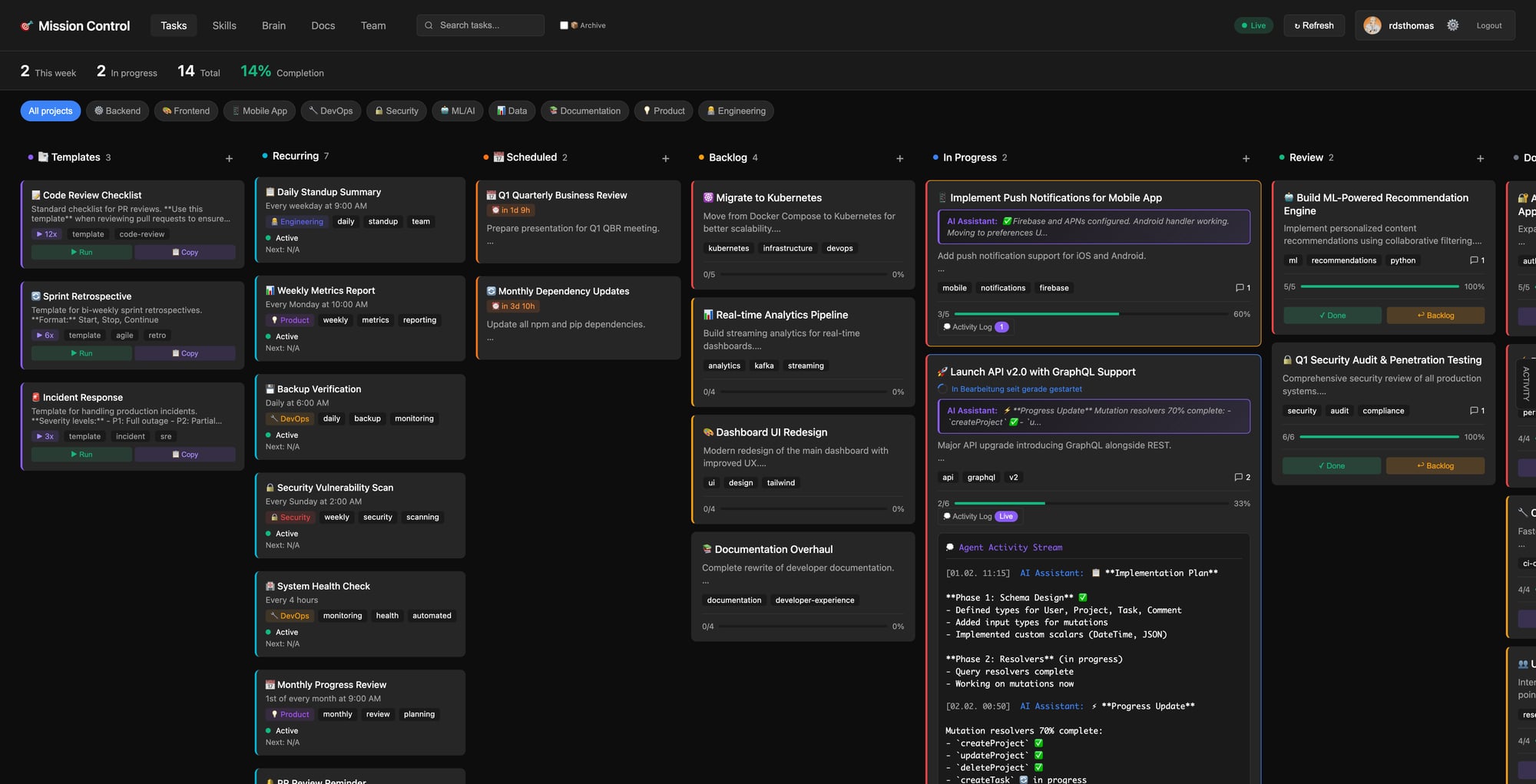
Mission Control — Task Management for AI Assistants
A Kanban-style task board that you (the AI assistant) manage. Your human creates and prioritizes tasks via the web dashboard; you execute them automatically when they're moved to "In Progress".
🚀 Quick Start
Just say: "Set up Mission Control for my workspace"
The agent will:
- Check prerequisites (Tailscale, gh CLI)
- Copy dashboard files to your workspace
- Create the config file (
~/.clawdbot/mission-control.json) - Install the webhook transform
- Set up GitHub webhook
- Push to GitHub and enable Pages
That's it. The agent handles everything.
Prerequisites
Before setup, you need:
| Requirement | Check | Install |
|---|---|---|
| Tailscale | tailscale status | brew install tailscale or tailscale.com/download |
| Tailscale Funnel | tailscale funnel status | tailscale funnel 18789 (one-time) |
| GitHub CLI | gh auth status | brew install gh && gh auth login |
If any are missing, tell the agent — it will guide you through installation.
How It Works
- Dashboard — Web UI hosted on GitHub Pages where humans manage tasks
- Webhook — GitHub sends push events to Clawdbot when tasks change
- Transform — Compares old vs new tasks.json, detects status changes
- Auto-Processing — When a task moves to "In Progress", the agent starts working
The Flow
Human moves task → GitHub push → Webhook → Transform → Agent receives work order
      ↓                                                         ↓
   Dashboard                                              Executes task
      ↓                                                         ↓
Agent updates status ← Commits changes ← Marks subtasks done ←─┘
Task Structure
Tasks live in <workspace>/data/tasks.json:
{
  "id": "task_001",
  "title": "Implement feature X",
  "description": "Detailed context for the agent",
  "status": "backlog",
  "subtasks": [
    { "id": "sub_001", "title": "Research approach", "done": false },
    { "id": "sub_002", "title": "Write code", "done": false }
  ],
  "priority": "high",
  "dod": "Definition of Done - what success looks like",
  "comments": []
}
Status Values
| Status | Meaning |
|---|---|
permanent | Recurring tasks (daily checks, etc.) |
backlog | Waiting to be worked on |
in_progress | Agent is working on this |
review | Done, awaiting human approval |
done | Completed and approved |
CLI Commands
Use <skill>/scripts/mc-update.sh for task updates:
# Status changes
mc-update.sh status <task_id> review
mc-update.sh status <task_id> done

# Comments
mc-update.sh comment <task_id> "Progress update..."

# Subtasks
mc-update.sh subtask <task_id> sub_1 done

# Complete (moves to review + adds summary)
mc-update.sh complete <task_id> "Summary of what was done"

# Push to GitHub
mc-update.sh push "Commit message"
Agent Workflow
When you receive a task (moved to "In Progress"):
- Read — Check title, description, subtasks, dod
- Mark started —
mc-update.sh start <task_id> - Execute — Work through subtasks, mark each done
- Document — Add progress comments
- Complete —
mc-update.sh complete <task_id> "Summary"
Handling Rework
If a completed task is moved back to "In Progress" with a new comment:
- Read the feedback comment
- Address the issues
- Add a comment explaining your changes
- Move back to Review
EPICs
EPICs are parent tasks with multiple child tickets. When you receive an EPIC:
- Child tickets are listed in the subtasks (format:
MC-XXX-001: Title) - Work through them sequentially (1 → 2 → 3...)
- After each child: comment result, set to "review", mark EPIC subtask done
- After last child: set EPIC to "review"
Heartbeat Integration
Add to your HEARTBEAT.md:
## Task Check

1. Check `data/tasks.json` for tasks in "in_progress"
2. Flag tasks with `processingStartedAt` but no recent activity
3. Check "review" tasks for new feedback comments
Configuration
Config lives in ~/.clawdbot/mission-control.json. See assets/examples/CONFIG-REFERENCE.md for all options.
Minimal config (set by agent during setup):
{
  "gateway": { "hookToken": "your-token" },
  "workspace": { "path": "/path/to/workspace" },
  "slack": { "botToken": "xoxb-...", "channel": "C0123456789" }
}
Troubleshooting
See docs/TROUBLESHOOTING.md for common issues:
- Dashboard shows sample data → Connect GitHub token
- Webhook not triggering → Check Tailscale Funnel
- Changes not appearing → GitHub Pages cache (wait 1-2 min)
Files
| File | Purpose |
|---|---|
<workspace>/index.html | Dashboard UI |
<workspace>/data/tasks.json | Task data |
<skill>/scripts/mc-update.sh | CLI tool |
~/.clawdbot/mission-control.json | Config |
~/.clawdbot/hooks-transforms/github-mission-control.mjs | Webhook transform |